Create quickly,
Print and study anywhere
Make flashcards on your phone and print them right away. Even if you can't bring your phone to school, you can study with paper flashcards.


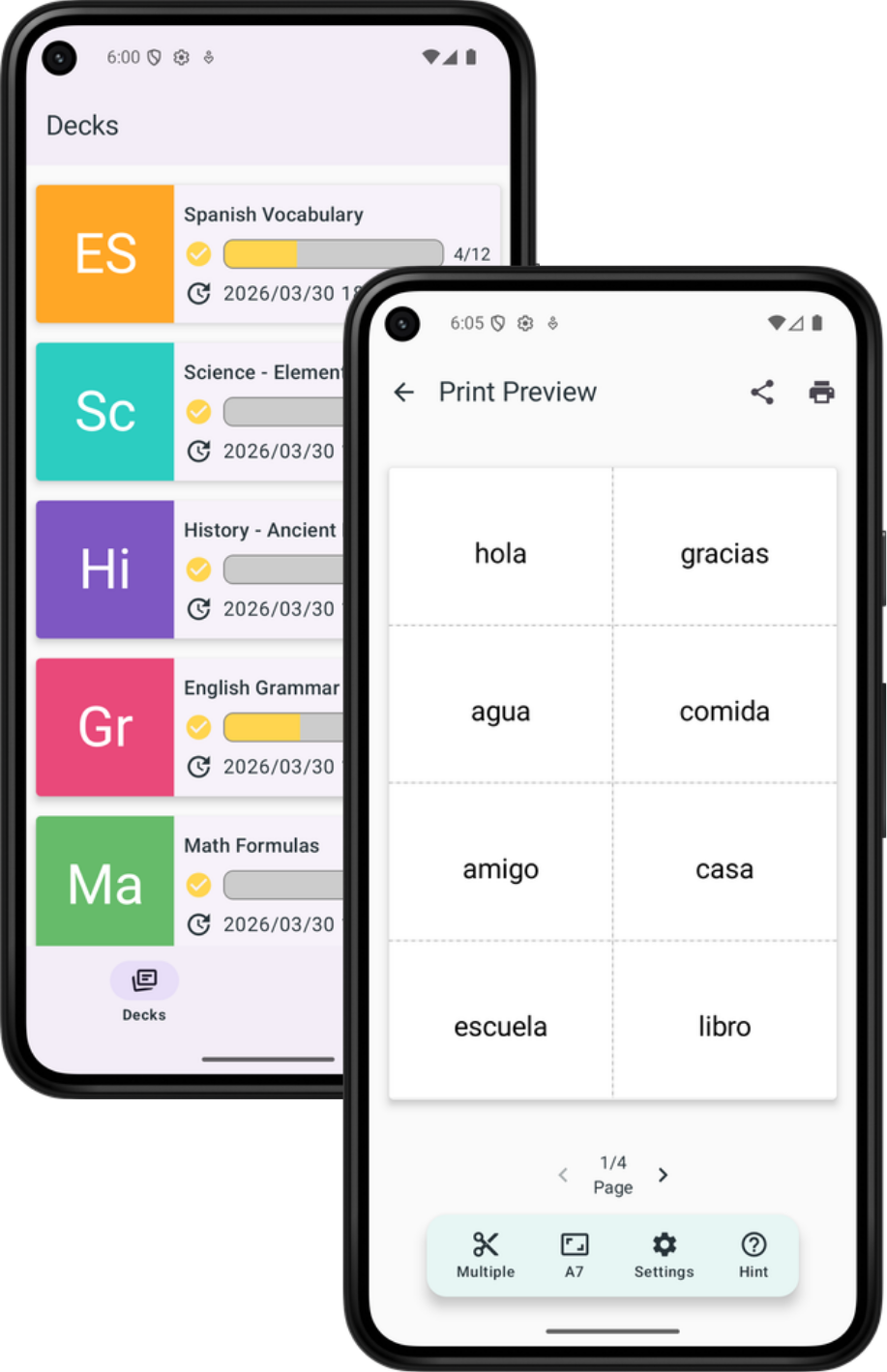
Make on your phone, take on paper
Tanpri is a flashcard app that lets you print the cards you make on your phone.
Fill in the front and back of a card, and your flashcard is ready. You can also attach photos and make words stand out with bold, underline, and color. Print the cards you make as a list or as cards to cut out, so you can study with paper flashcards even where you can't use your phone.
3 ways to print
When you print, choose from "Learn from list", "Cut and use", or "Print one by one".
-
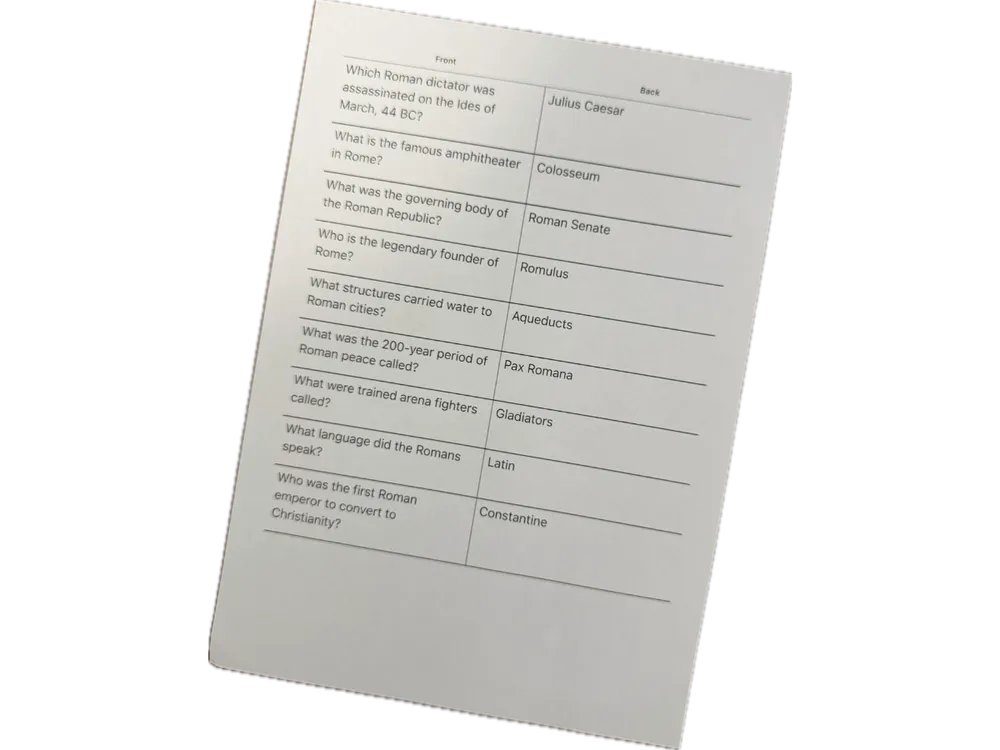
Learn from list
Print a list with the front and back side by side. Cover one side to check what you remember.
Paper: A4, B5
- No cutting needed
-
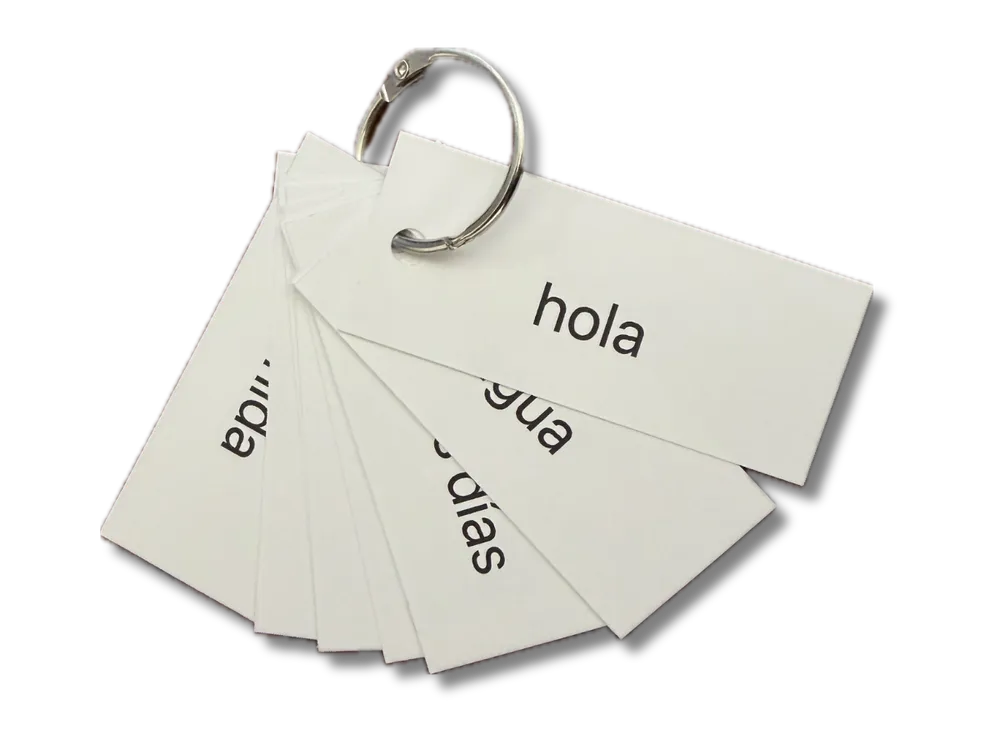
Cut and use
Print flashcards lined up on A4 paper, then cut them out to use as paper flashcards.
Paper: A4
- Card sizes: business card size, A7, Wide
- Fronts and backs are printed on alternating pages
- Backs are laid out to line up with the fronts when printed double-sided
- Add cut lines with "Show Cut Lines"
-
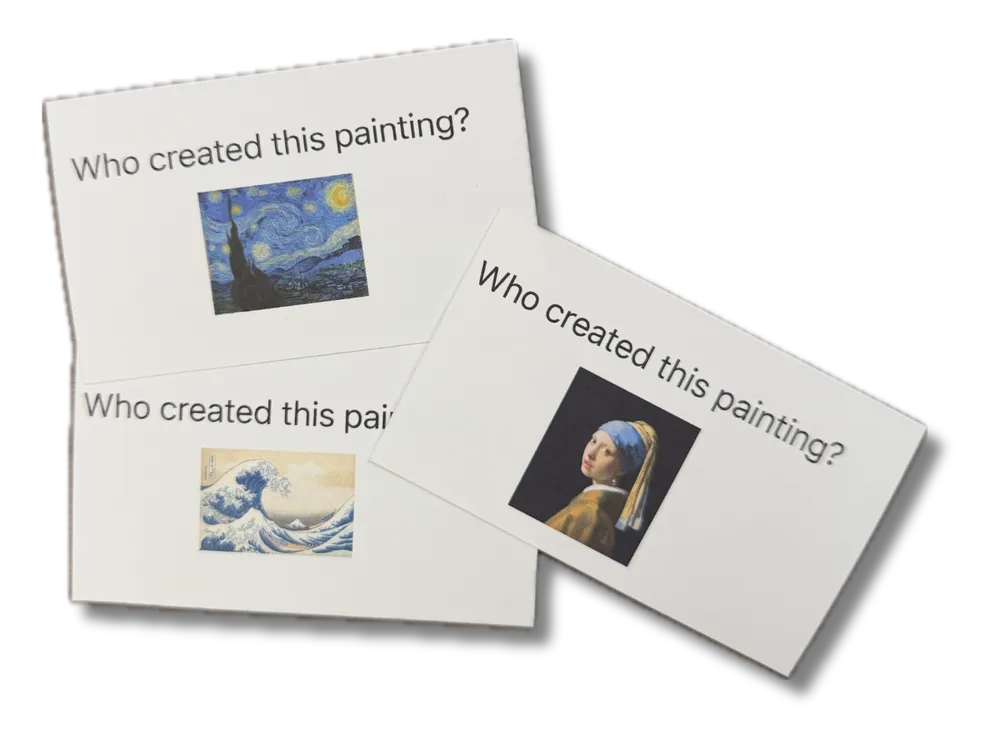
Print one by one
Each sheet of paper becomes one flashcard. No cutting needed.
Paper: business card size, A7
- Each card is two pages, front and back. With double-sided printing they become the two sides of one sheet
What Tanpri can do
Make cards one at a time or from a word list, and check how they will look before you print.
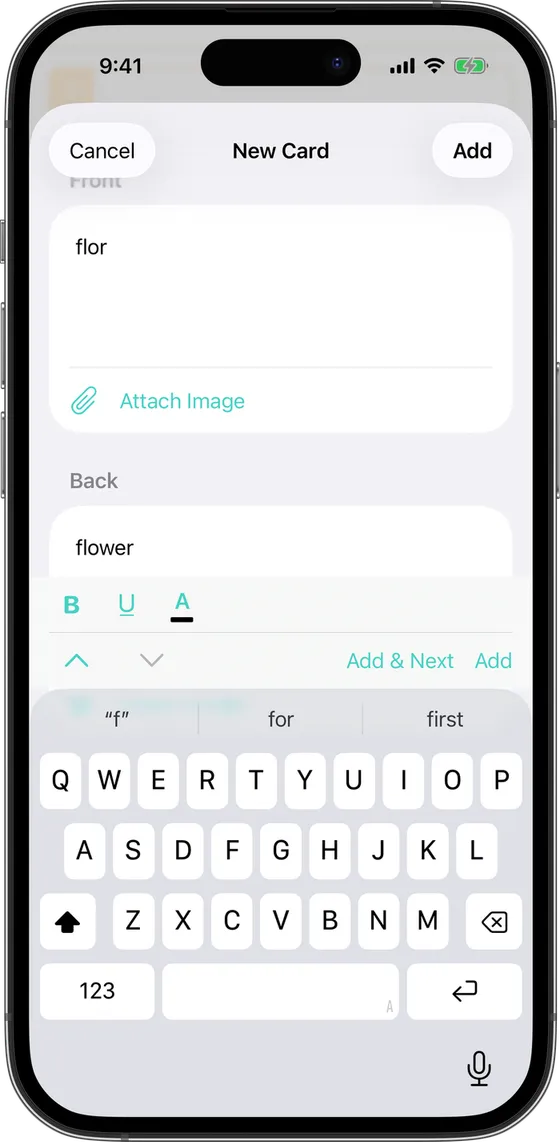
Simple to make a card
Just fill in the "Front" and "Back" of a card and tap "Add". Use "Add & Next" to keep making more. Your cards are grouped into card sets.
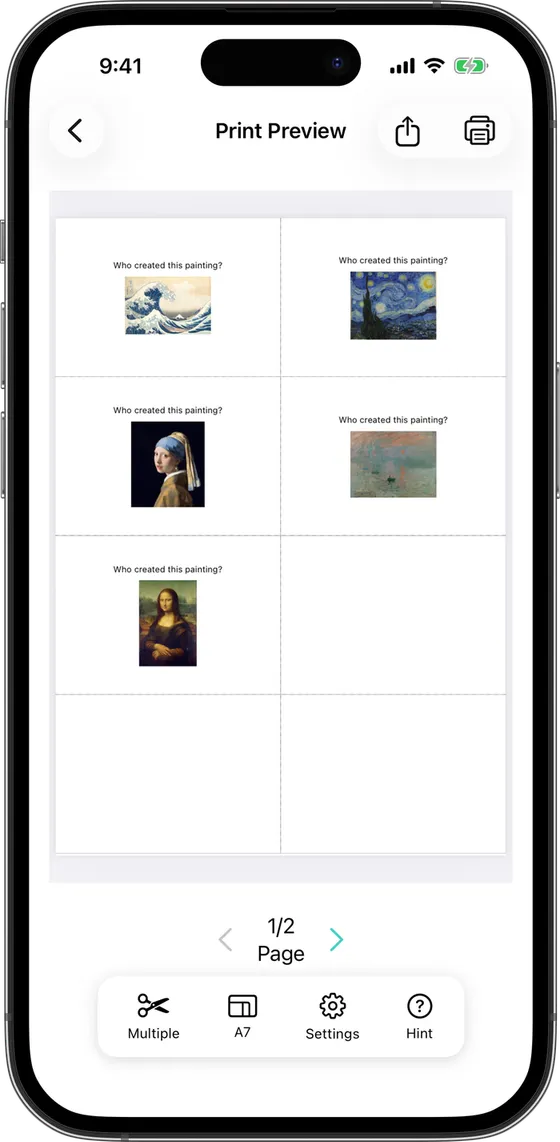
Photos print too
Attach images with "Take Photo" or "Choose from Gallery". Images can be printed too.
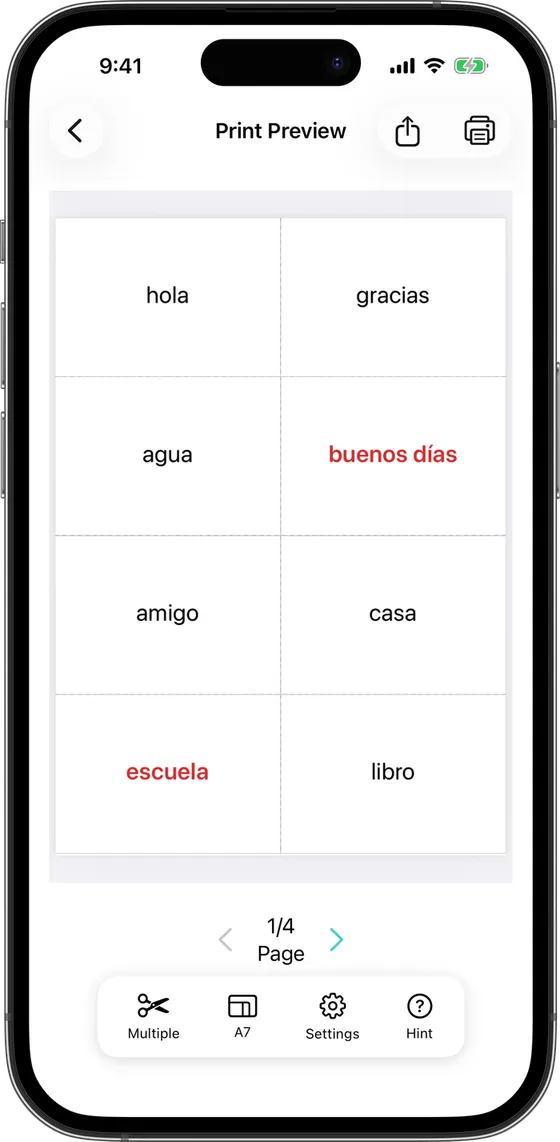
Text styling carries over to prints
Make words stand out with bold, underline, and color. Your styling carries over to printouts, too.
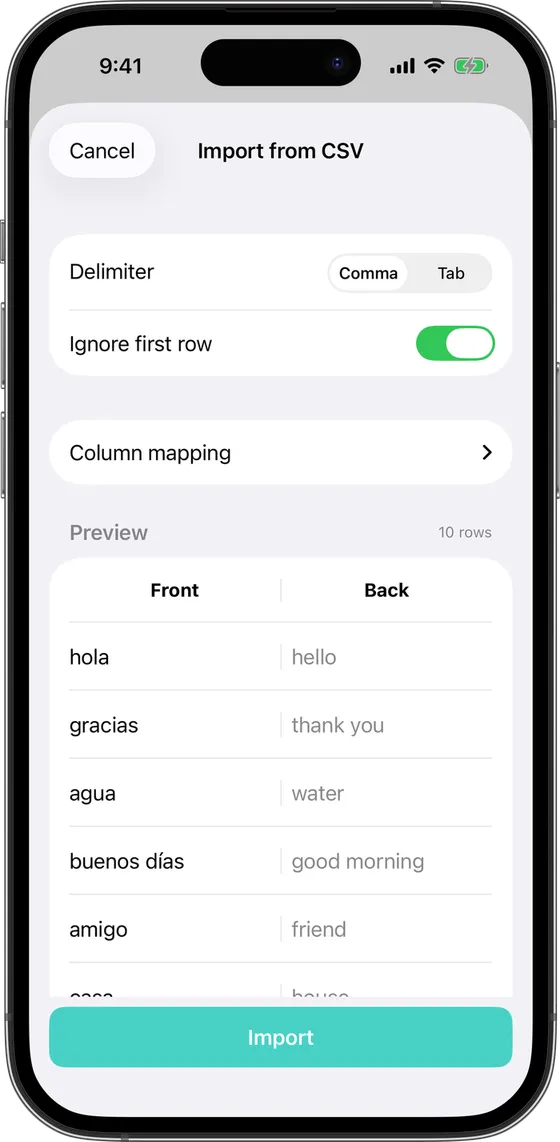
Import a whole word list
Bring in a word list you already have with "Import from CSV". Choose "Comma" or "Tab" as the delimiter, choose which column to use for "Front" and "Back", and check the preview before importing.
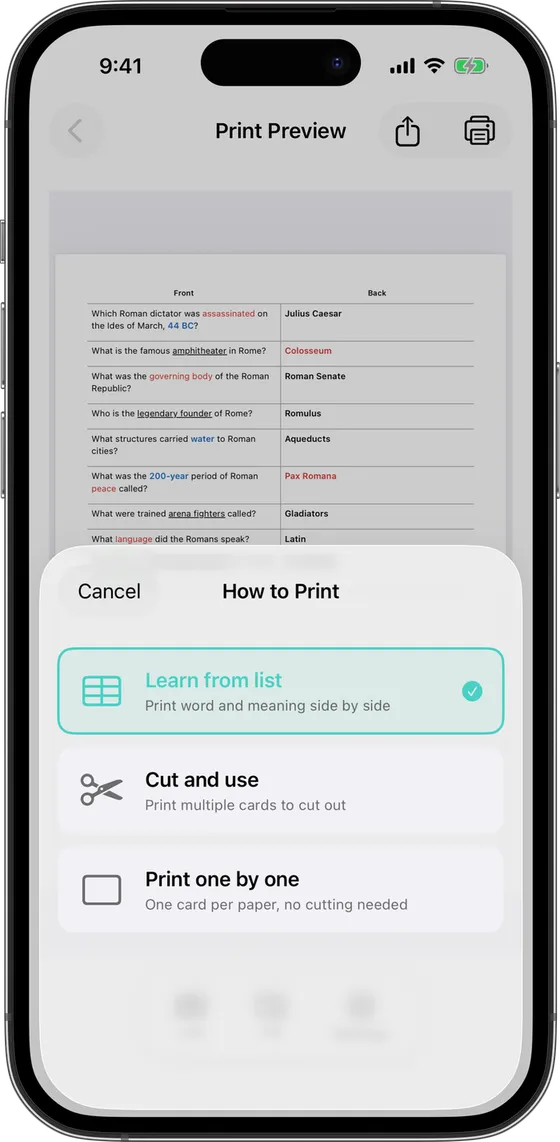
Check the result before you print
"Print Preview" shows how your cards will be printed.
- Change "Font Size" and "Image Size", and turn "Include Images" and "Show Cut Lines" on or off.
- If something doesn't fit, you'll see "Some cards have content that doesn't fit. Try reducing font or image size."
- Print hints are shown for "Cut and use" and "Print one by one". For "Cut and use", they include "Print size: 100% (actual size)", "Duplex printing: long-edge binding", and "It's a good idea to do a test print first". You choose double-sided printing in the print screen when you print.
- If printing from your phone doesn't work, you can share the PDF and print it from a computer.
More you can do
-
Study in the app
Check the answer with "Tap to flip" and mark cards you know as mastered with the button on the card. You can also turn on "Show back first", "Skip mastered", and "Shuffle".
-
Organize with folders
Sort your card sets into folders.
-
Theme color and icon text
Set a "Theme Color" and "Icon Text" for each card set.
-
Search cards
Search for the card you're looking for within a card set.
-
Share card sets
Send your card sets to friends and family.
-
Backup
Back up your card sets and restore them later.
Who it's for
-
Can't bring your phone to school
Print the cards you make on your phone and take them to school on paper.
-
Tired of writing flashcards by hand
Type them on your phone and print them as flashcards.
-
Already have a word list
Turn a CSV or text file into cards all at once.
-
Printing from your phone doesn't work
Share the PDF and print it from a computer instead.